
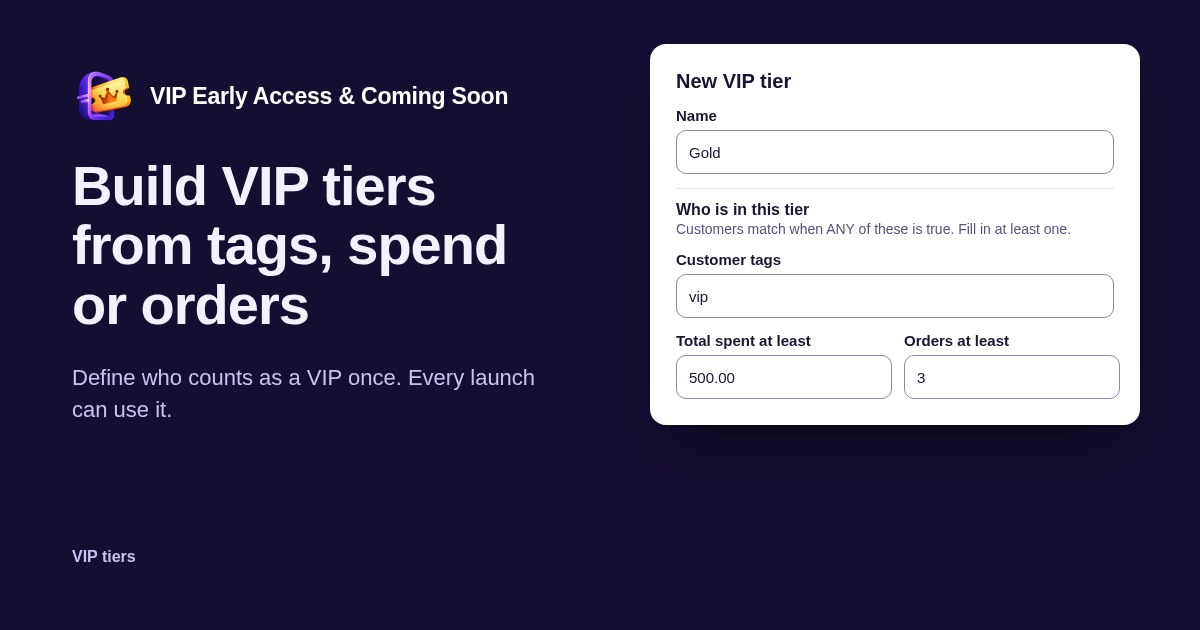
Define who counts as a VIP once and reuse it for every launch. Tags, total spent and order count, how to choose between them, and how tier order works.
Before you can give anyone early access, you have to decide who your VIPs are. Many stores answer that question again for every launch, with a spreadsheet and a tag applied by hand. It is slow, and it drifts. A better approach is to define your tiers once, from data Shopify already holds, and let every launch reuse them.
This guide covers the three signals that work well, how to choose between them, and how tier order decides who gets what.
The three signals
1. A customer tag
A tag is the most flexible signal. Anything that can tag a customer can put them in a tier: you, a loyalty app, a subscription app, a form, or an import. A tag is a good fit when VIP is a decision, not a number. Think of staff picks, creators, wholesale buyers, members of a paid club, or people who joined an early access list.
The trade-off is that someone has to apply the tag, and it is only as accurate as the process behind it.
2. Total spent
Total spent is the amount a customer has spent in your store over time. It rewards the people who have paid you the most, and it needs no upkeep: the tier follows the customer as they spend. It is measured in your store currency, and amounts are never converted.
The trade-off is that total spent only rises, so a customer who bought one expensive item once can outrank a regular who buys every month.
3. Number of orders
Order count rewards frequency. A customer with five small orders counts the same as one with five large ones. It is a good proxy for loyalty and hard to game with a single big purchase.
The trade-off is the reverse of spend. It does not distinguish a customer who spends a lot per order from one who spends a little.
Choosing a rule
There is no universal right answer, but these questions help:
- Is VIP a judgement or a measurement? Judgement points to tags. Measurement points to spend or orders.
- Do you want it to run without you? Spend and orders do. Tags need a process.
- Who do you most want to reward? The biggest spenders, the most frequent buyers, or a group you chose?
Many stores combine them. In VIP Early Access, one tier can use any of the three. A customer matches the tier when any one of its conditions is true, not all of them. So "tagged gold, or spent 500 or more, or placed 3 or more orders" lets in everyone who meets any of those.
Keep it small
Two or three tiers are easier to explain to customers and easier to schedule than six. Add a tier only when you would really give it a different opening time.
How tier order works
Tiers sit in a ladder, highest first. A customer who matches several tiers gets the highest one. That is how a customer with the Silver tag and ten orders ends up in Gold if Gold is on top and ten orders is enough.
The order has two consequences you should check before you launch:
- A higher tier can always buy at least as early as the tiers below it. The app will not let you give Silver an earlier time than Gold.
- A tier can be hidden by the one above it. If everyone who qualifies for Silver also qualifies for Gold, nobody can ever reach Silver. The app warns you when that happens, so move the tier or change its rules.
Order also matters for the schedule. See How long should VIP early access last? for how to stagger the tiers over time.
How VIP Early Access builds a tier
- Go to VIP tiers and choose Add VIP tier. Give it a name that shoppers will see on product pages and on the VIP page.
- Add conditions. You can list up to 20 customer tags, set a minimum total spent, set a minimum number of orders, or use any mix.
- Save, and put the tier in the right place in the ladder.
- Use the tier in a launch. Each launch picks the tiers it lets in and when each one can buy.
A few details worth knowing:
- Customers get their tier within about a minute of qualifying. Changing a tier updates every customer in the background.
- Members get a customer tag with the tier's name, in the form VIP tier: Gold. Use it in your own emails and Shopify segments.
- You can add a customer to a tier by hand, whatever their tags, spend or orders. They keep a higher tier if they qualify for one.
- Tags that start with VIP tier: are reserved for the app, so use another tag for your own rules.
- If your store currency changes, a spend condition set in the old currency stops applying until you enter the amount again.
New stores start with two tiers, Gold and Silver, based on the number of orders. Edit them or add your own. How many tiers you can have depends on your plan, which you can see on the pricing page.
A word on sign-in
Tiers only work for customers who are signed in to their customer account. A guest is never a VIP, even if they type a VIP's email address at checkout. Say so in your announcement: "sign in to your account to see your early access." For the whole picture, read How to give VIP customers early access on Shopify.
Frequently asked questions
Can a customer be in more than one tier?
A customer holds one tier at a time. If they match several, they get the highest one in your ladder.
Do all the conditions have to be true?
No. A customer matches a tier when any one of its conditions is true: one of its tags, the minimum spend, or the minimum number of orders.
Do I have to tag customers by hand?
No. Spend and order count tiers fill themselves. You can still add a customer to a tier by hand, and tags written by other apps work too.
Can I use tags from my loyalty app?
Yes. Any Shopify customer tag can define a tier, including tags that a loyalty app writes.
Create automatic VIP tiers from customer tags, total spend, or order count and reuse them across every Shopify launch.
Install VIP Early Access on Shopify