A teaser, a countdown, a VIP window, limits, an optional raffle or waitlist, and the public release. The steps of a drop, in order, and where an app helps.
A product drop is a launch with a start time. People know it is coming, they know when it opens, and the product is only available for a limited stretch or in a limited amount. Done well, it turns a new product into an event. Done badly, it turns into a support inbox full of "why can't I buy it?"
Here is the checklist, in the order you will actually need it. Each step says what to decide and, where it applies, how VIP Early Access handles it.
1. Fix the facts before you tell anyone
Write down the product, the exact opening time, the time zone, and who gets in first. Everything else depends on these four. Pick a time that suits the customers you care most about, not the one that suits your team.
In the app, launch times are entered in your store's time zone, which comes from Shopify unless you choose another one in the app's settings. Shoppers in other countries get access at the same moment, shown in their own time.
2. Tease it
Put the product page live before the drop, with the date on it. A teaser gives people something to share and a reason to come back. It also tells you early whether anyone cares.
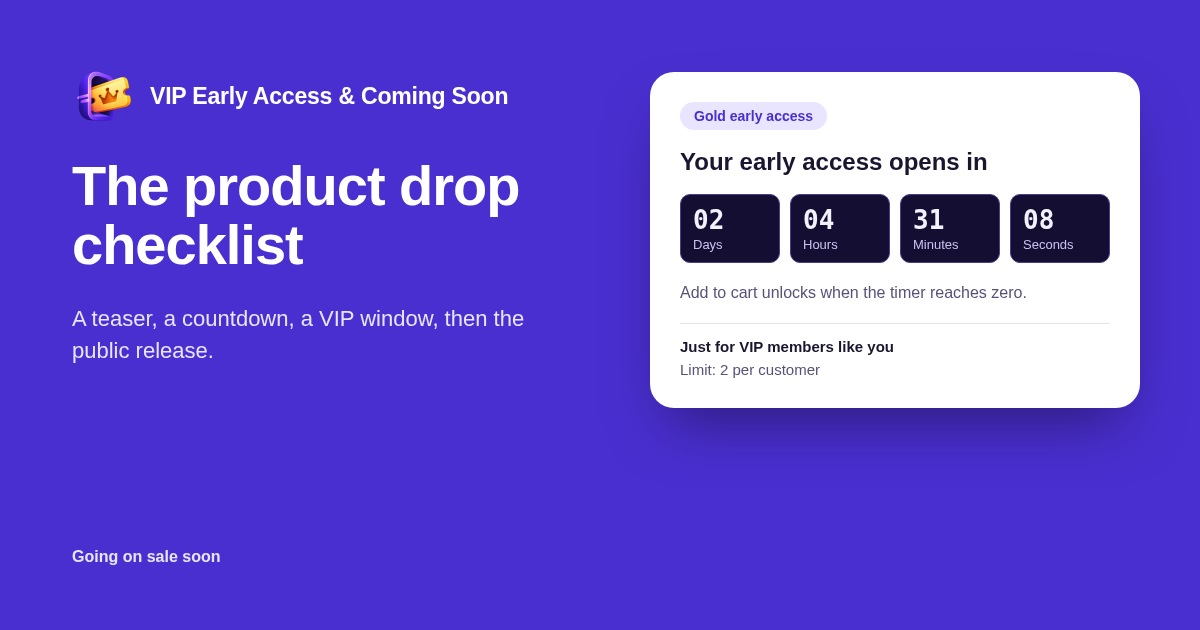
When you schedule a launch, the product page shows a guest who cannot buy yet an "On sale" date with a countdown. A signed-in customer who cannot buy yet sees that Add to cart unlocks when the timer reaches zero.
3. Show a countdown
A countdown removes guesswork. Shoppers stop refreshing and start planning. The product page panel counts down to each shopper's own opening time, and the page reloads once that moment passes, so the buy button is there when they arrive.
4. Open a VIP window
Give your best customers a head start. Decide who counts as a VIP, then decide how long the head start lasts. We cover those two questions in How to build VIP tiers on Shopify and How long should VIP early access last?.
- Each tier gets its own date and time, so Gold can open before Silver.
- A higher tier can never open later than a tier below it.
- The products stay locked for everyone else until their own time arrives.
5. Set a limit per customer
A limit stops one buyer from taking the whole run. Decide the number before the drop, and write it on the product page so nobody is surprised at checkout.
- The limit counts every product in the launch together, from the cart and from the customer's earlier orders.
- It applies in checkout during early access and after everyone else can buy, until the launch ends.
- You can set any whole number from 1 to 999 units per customer.
Be honest with yourself about the edges. A guest is limited by what is in their cart only, because the app cannot see the earlier orders of someone who is not signed in. A second account counts as another customer.
6. Decide whether you need a raffle
If many more people want the product than you have units, a first-come rush rewards the fastest connection, not the best customer. A raffle, also called a draw, gives everyone the same chance for a set period.
- You set when entries open, when they close, and how many winners you want.
- Signed-in customers enter on the product page while entries are open.
- When entries close, the winners are drawn. You can also draw by hand once entries have closed.
- Winners can buy from a time you set, at least 15 minutes after entries close, and before everyone else can.
- You can export the winners as a CSV file.
A raffle can sit next to your tiers. Customers whose tier can already buy are not asked to enter, and everyone else can enter the draw while it is open. How many entries one raffle can hold depends on your plan.
7. Collect a waitlist
If the drop is weeks away, give interested people a way to say so. The app has an early access list: shoppers join with their email on a product page or on your VIP page. They are tagged vip-waitlist and join a Subscribers tier. Add that tier to a launch and they get early access.
Remember to sign in
A person on the list has to sign in with the same email when the launch opens, because the app only recognises signed-in customers.
8. Plan the public release
Choose when everyone else can buy, or leave that off and run the launch for VIPs only. You can also set an end time. Without one, a launch with a public date ends once everyone can buy, and a VIP-only launch runs until you end it.
Check the plan before you schedule. The app lists problems it can see, such as a product that is not published to the online store, a date that has already passed, or a checkout rule that is turned off.
9. On the day
- Open the launch and check its status: scheduled, VIP early access, or open to everyone.
- Keep one person on support. The checkout messages tell shoppers what is wrong, but some will still write in.
- Do not change the rules in the middle of the window unless you must.
10. After the drop
Look at what happened before you plan the next one. For each launch the app reports orders, revenue and buyers, and separates the orders placed before everyone else could buy. Use it to decide whether the head start was too short, too long, or worth repeating.
If you have not set up the basics yet, start with How to give VIP customers early access on Shopify. Prices and limits are on the pricing page.
Frequently asked questions
Can a raffle and a VIP window run in the same launch?
Yes. A launch can have both. Customers whose tier can already buy do not need to enter, and everyone else can enter the draw while entries are open.
Does the per-customer limit apply to guests?
Only per cart. A guest is limited by what is in the cart, because the earlier orders of a customer who is not signed in cannot be counted.
How do shoppers join the early access list?
They enter their email on a product page or on your VIP page. They are tagged vip-waitlist and join a Subscribers tier, which you can add to any launch.
Which time zone do launch times use?
Your store's time zone from Shopify settings, unless you choose another one in the app's settings.
Run your next drop with countdowns, VIP tiers, per-customer purchase limits, raffles, and waitlists on the Free plan.
Install VIP Early Access on Shopify